How to Write a Floor Plan Prompt for AI
What an AI floor plan generator needs from you: size, room list, adjacencies, orientation and style. Weak and strong brief examples, and how to fix a result.
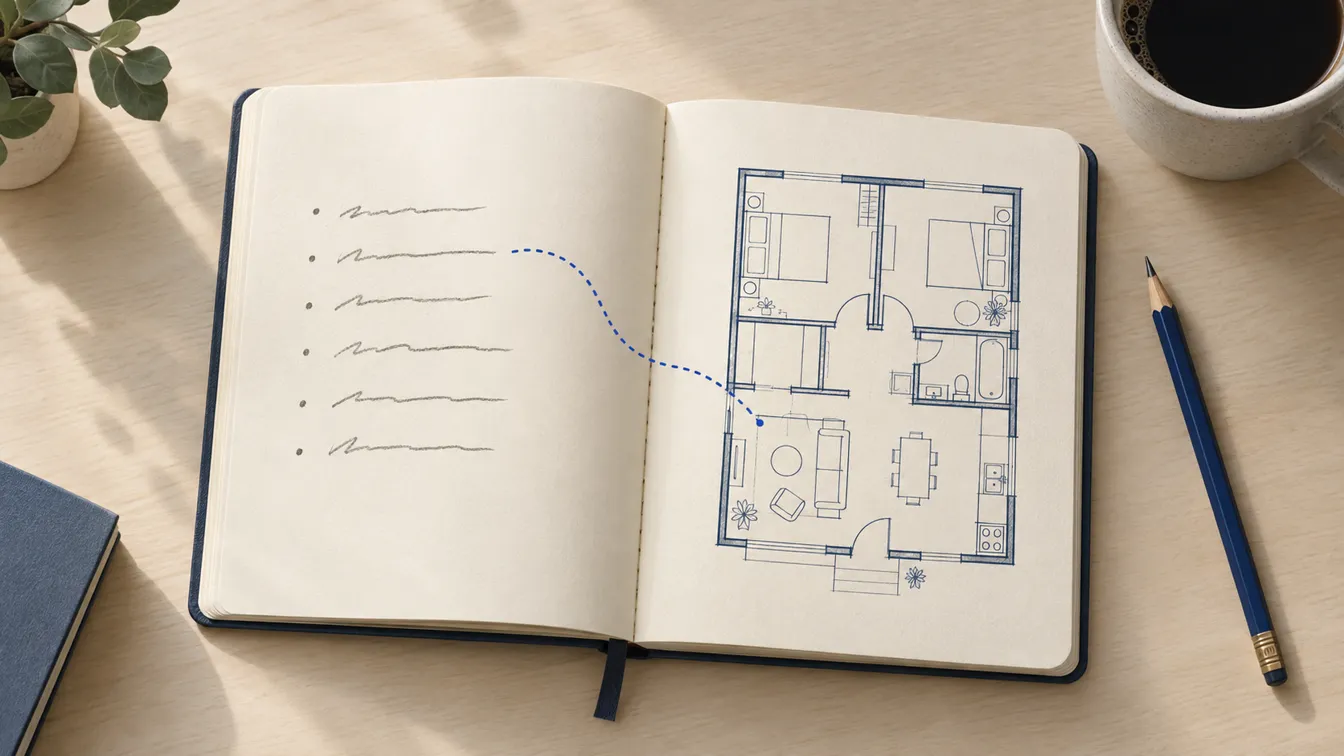
An AI floor plan generator draws whatever you describe, and invents whatever you don't. That's the whole skill of writing a brief: decide which choices you want to make yourself, and say them plainly enough that the model can't miss them.
This guide shows what the model does with your words, the seven things a good brief covers, real examples from weak to strong, and how to fix a result you don't like. The examples match the workbench on our floor plan generator, but the advice holds for any text-to-plan tool.
What the model does with your words
An image model doesn't design a building and then draw it. It produces a picture that matches your description, using everything it has seen of floor plans. In practice that means:
- Explicit instructions are usually followed. Room counts, which room is next to which, where the entrance is.
- Gaps get filled with typical choices. Leave out the number of bedrooms and you'll get a common one. Leave out the size and you'll get whatever that kind of building usually looks like.
- Numbers are treated as guidance. A room you call 3 × 4 m will be about that size and probably labelled that way, but the model doesn't add up its own dimensions. Check them.
Here is what that looks like. Both images below came from the same model with the same drawing style. Only the brief changed.
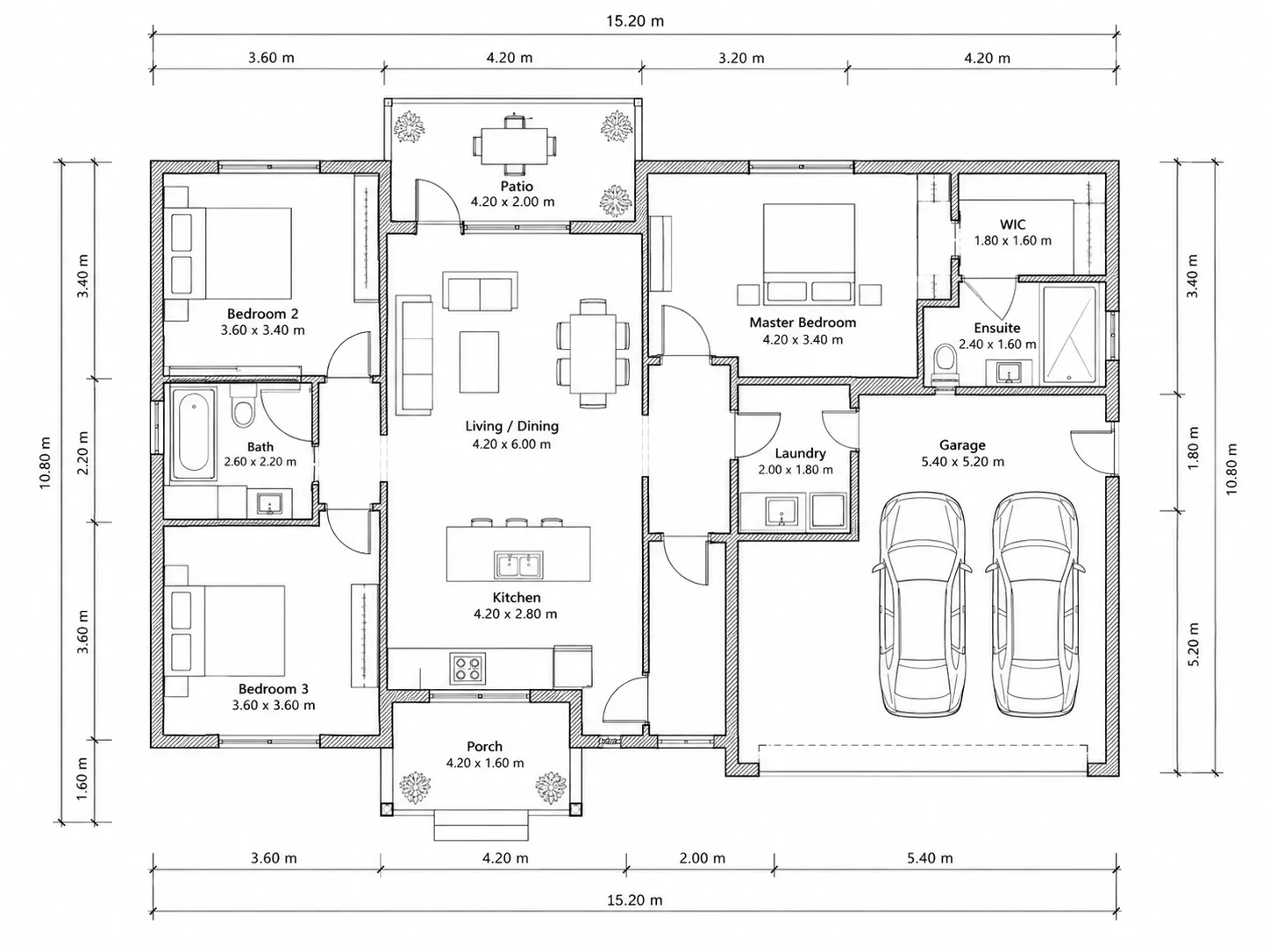
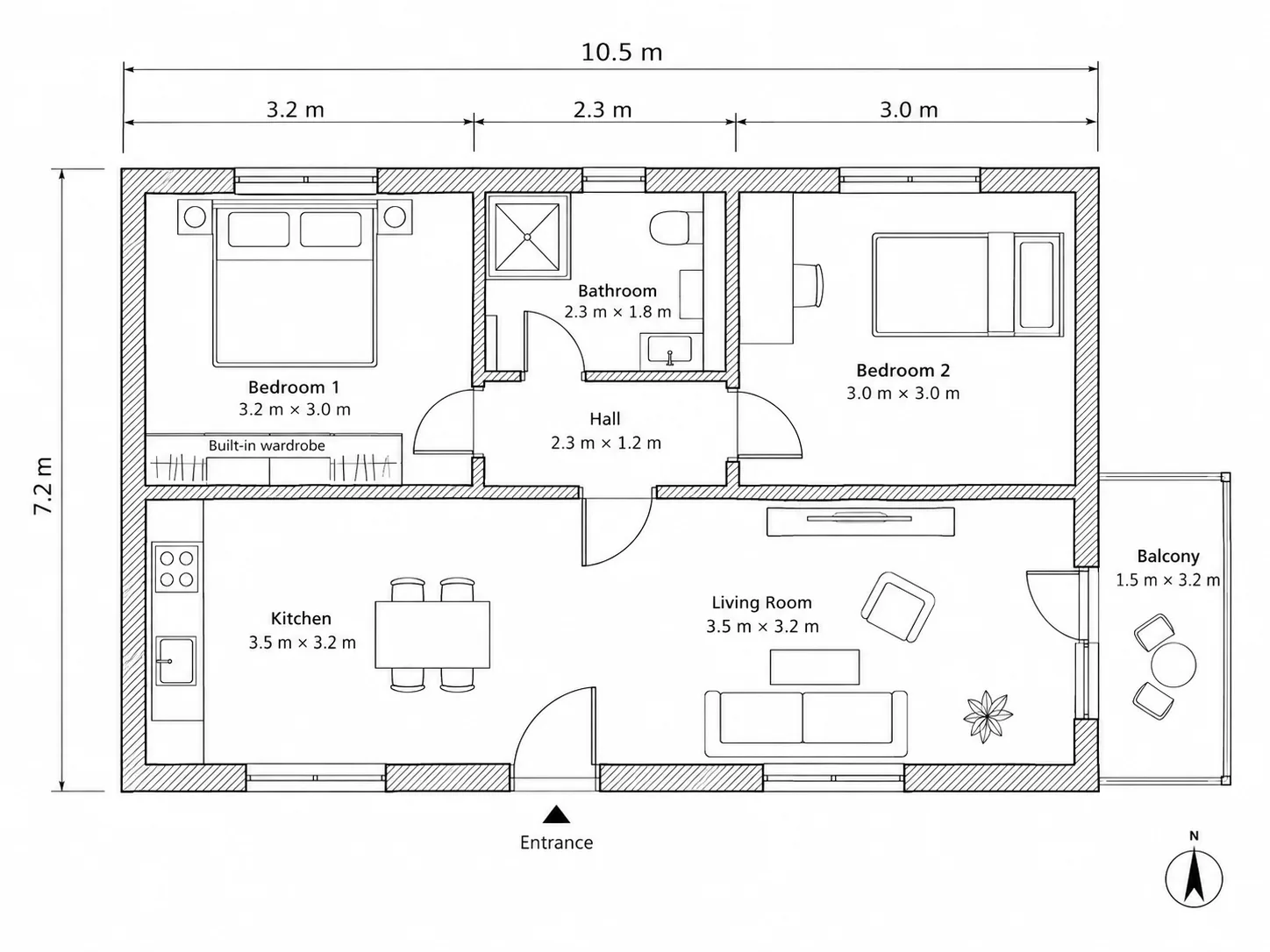
The vague brief produced a perfectly plausible plan, just not your plan. The detailed brief got the layout right, and still shows why every AI plan needs reading: the segments along the top (3.2 + 2.3 + 3.0 m) don't sum to the 10.5 m overall.
The seven things a good brief covers
- What it is and how big. Type, storeys and total area with a unit: "single-storey two-bedroom apartment, about 75 m²".
- The room list. Every room you need, with counts: two bedrooms, one bathroom, open kitchen and living, hall, storage.
- Rough sizes for the rooms that matter. You don't need every room. "Main bedroom about 3.4 × 3.6 m" for the one that must fit a king bed is enough.
- Adjacencies. What opens off what. "Bathroom entered from the hall, between the bedrooms." "Kitchen open to the living room." This does more for a layout than any adjective.
- Orientation and fixed features. Where the entrance is, which side faces south or the view, where the balcony or garden is, any existing walls or windows you have to keep.
- Footprint. Rectangle, L-shape, narrow and deep, with the outer dimensions if you know them.
- How it should be drawn. Labels, units and level of detail. In our workbench the drawing style (Technical, Blueprint, Colored 2D, 3D Isometric, Realistic, Collage) is a separate picker, so you don't have to describe it in words.
A useful order is to write it like a short paragraph from an architect's brief: the whole first, then the rooms, then how they connect, then the details.
Examples, from weak to strong
A nice modern house
No size, no rooms, no layout. Every decision is left to the model, and "nice" and "modern" don't describe a floor plan. Expect a generic three-bedroom house, as above.
3 bed 2 bath open plan, big kitchen with island and walk-in pantry, home office, mudroom, laundry, master suite with walk-in closet and double vanity, garage, 1,200 sq ft
Eleven spaces and an island in 1,200 sq ft won't fit at any comfortable size, and the model will still try, shrinking everything. Cut the list to what you really need, or raise the area.
Two-bedroom apartment with an open kitchen and living room, one bathroom and a balcony.
The room list is clear, but the model still chooses the size, the shape and where everything goes.
Two-bedroom apartment, about 75 square metres, rectangular footprint about 10.5 by 7.2 metres. Entrance on the long south wall into a small hall. Open-plan kitchen and living room along the south side, with a door to a balcony. Two bedrooms on the north side; the main bedroom has a built-in wardrobe. One bathroom with a shower, entered from the hall between the bedrooms. Label every room in English and show the overall dimensions in metres.
Size, footprint, entrance, orientation, adjacencies and labelling are all stated, in plain sentences, in a sensible order. The result followed nearly all of it.
Bathroom about 2.4 by 1.8 metres. Door on the long wall, opening inward. Shower in the far corner opposite the door, toilet beside the shower, vanity with one basin next to the door. Small window above the toilet. Show fixtures and the door swing.
For a single room, use the Room scope and describe fixtures by position relative to the door and the walls.
Units and numbers
- Pick one unit system and use it throughout. Write "75 square metres" or "800 sq ft", not both.
- Give the total area and a few key sizes, not a dimension for every room. Over-specifying invites the model to contradict itself.
- Make the numbers possible. Rooms plus walls plus hallways have to fit inside the total. If your room sizes already add up to the whole area, there's no space left for walls or a hall. Our standard room sizes guide has typical ranges.
- Expect rounding. Labels will be close to what you asked for, not necessarily exact.
Words that help, and words that don't
Words that change a layout are spatial: open-plan, en-suite, entered from the hall, between, opposite, along the south wall, L-shaped, single-storey, split bedrooms. Words that change nothing are evaluative: beautiful, luxury, perfect, smart. If you mean something by "modern", say what: "open kitchen, large windows on the garden side".
State what you want rather than only what you don't. "Parking on the street; the whole ground floor is living space" works better than "no garage" on its own.
Using the EZ Floor Planner workbench
The workbench adds a few controls around the text box, and knowing what they do saves credits:
- Room / House / Custom. The first two add a short framing sentence, either a single room in detail or a complete dwelling on one level. Custom adds nothing.
- Enhance Prompt. When it's on, the tool's drawing instructions and your chosen style are added to what you type. When it's off, your text is sent exactly as written and the style tiles are disabled. Leave it on unless you've written the style and drawing instructions yourself.
- Style. Technical, Blueprint, Colored 2D, 3D Isometric, Realistic or Collage.
- Model and quality. Each model's credit cost is shown in the picker, and the Generate button shows the cost before you run it. If a render fails, the credits are refunded.
- Examples. A rotating set of sample briefs you can load and edit.
The box accepts up to 5,000 characters, but a clear 60–120-word brief like the strong examples above usually does better than a long one.
Fixing a result you don't like
- Read it like any plan. Check the room list, the adjacencies, the door swings and whether the dimensions add up. The checklist in how to read a floor plan takes five minutes.
- Change one thing at a time. If a room is in the wrong place, add one sentence about it and generate again. Rewriting everything at once makes it hard to tell what helped.
- Edit instead of regenerating. Upload the result to the floor plan editor and describe the change: "move the bathroom door to the hall side", "make bedroom 2 wider".
- Keep the brief. Save the version that worked so you can come back to it.
Where EZ Floor Planner fits
EZ Floor Planner is built around exactly this workflow: write a brief, pick a style, generate a labelled floor plan image, then refine it by regenerating or by uploading it with a described change. The default model is GPT Image 2.5 Flare, and the credit cost is shown before every run.
The result is an image you open in your browser, not an editable drawing. There's no drag-and-drop canvas and no DXF or CAD export today, and the dimensions in the image should be checked before anyone relies on them.