Furnish Empty Rooms With Virtual Staging AI

Upload a photo of an unfurnished room and get a staged version back — furniture, rugs, and decor placed to match the room’s perspective and light, without hiring a stager.

  • Browser-based
  • Works from one photo
  • Credit-based pricing
Enhance PromptOn: we prepend this tool’s prompt scaffold and the selected style wording to what you type. Off: we send your text exactly as written and nothing else.ON0/5000

Detail-preserving edits to your uploaded image.

12 credits per image · 1K · 4:3

Furnish Your Empty Room

Upload a photo of the empty room and describe how it should be furnished.

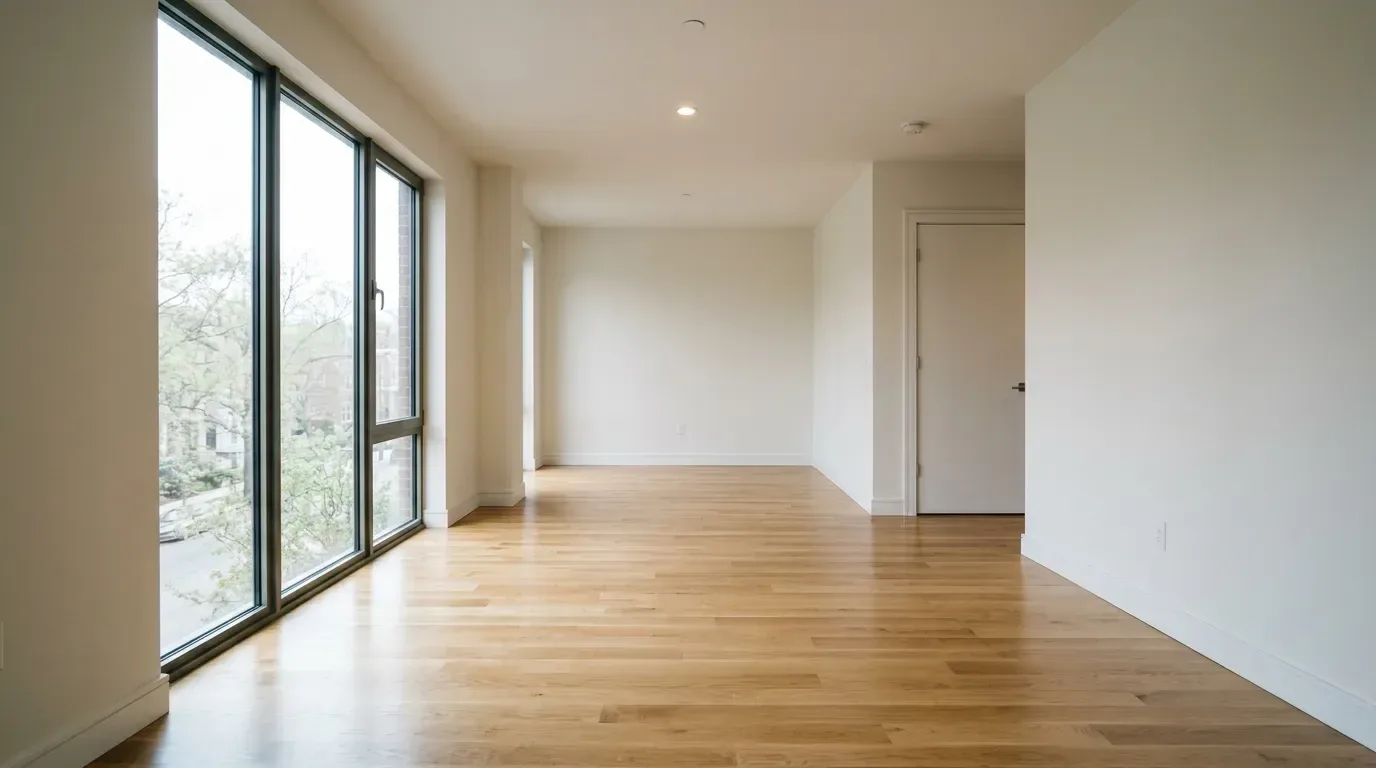
Empty room photograph after virtual staging, furnished in the same perspective and light

Example prompt

Furnish this empty living room in a warm Scandinavian style: light fabric sofa, oak coffee table, large wool rug, reading chair by the window and a tall plant in the corner.

Upload your room photo(0/1)
JPG or PNG up to 10MB

Staging that fits the room you photographed

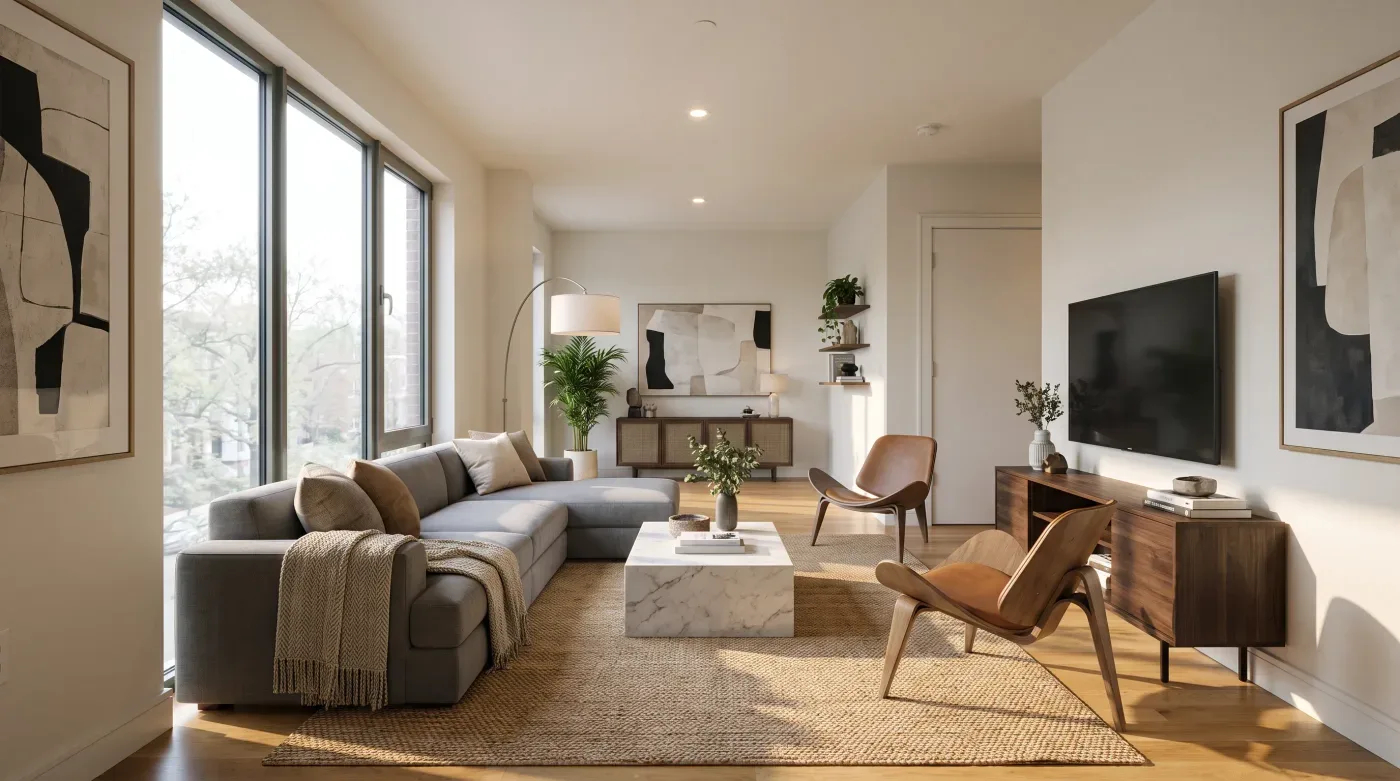
Furniture placed to the room’s own perspective, not pasted on top of it.

  • Photograph of an empty room used as the staging source

    Works from a single photo

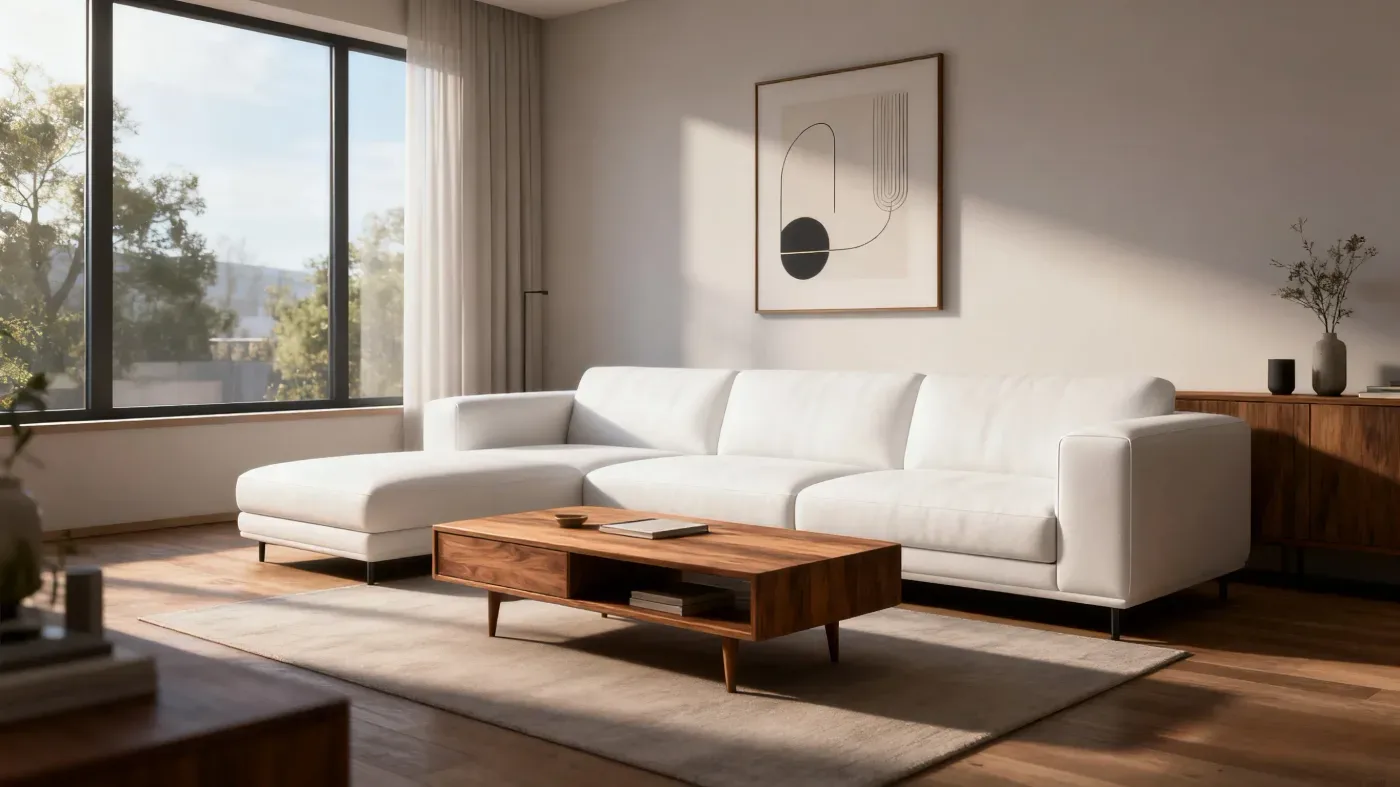
    One wide shot of an empty room is enough. No measuring, no 3D model, and nothing to move into the space.

  • Living room staged with a white sectional sofa, a walnut coffee table and a rug

    Keeps the architecture intact

    The staging prompt tells the model to leave walls, windows, doorways, and ceiling height as photographed and add only the furnishings, so the staged shot still describes the real room.

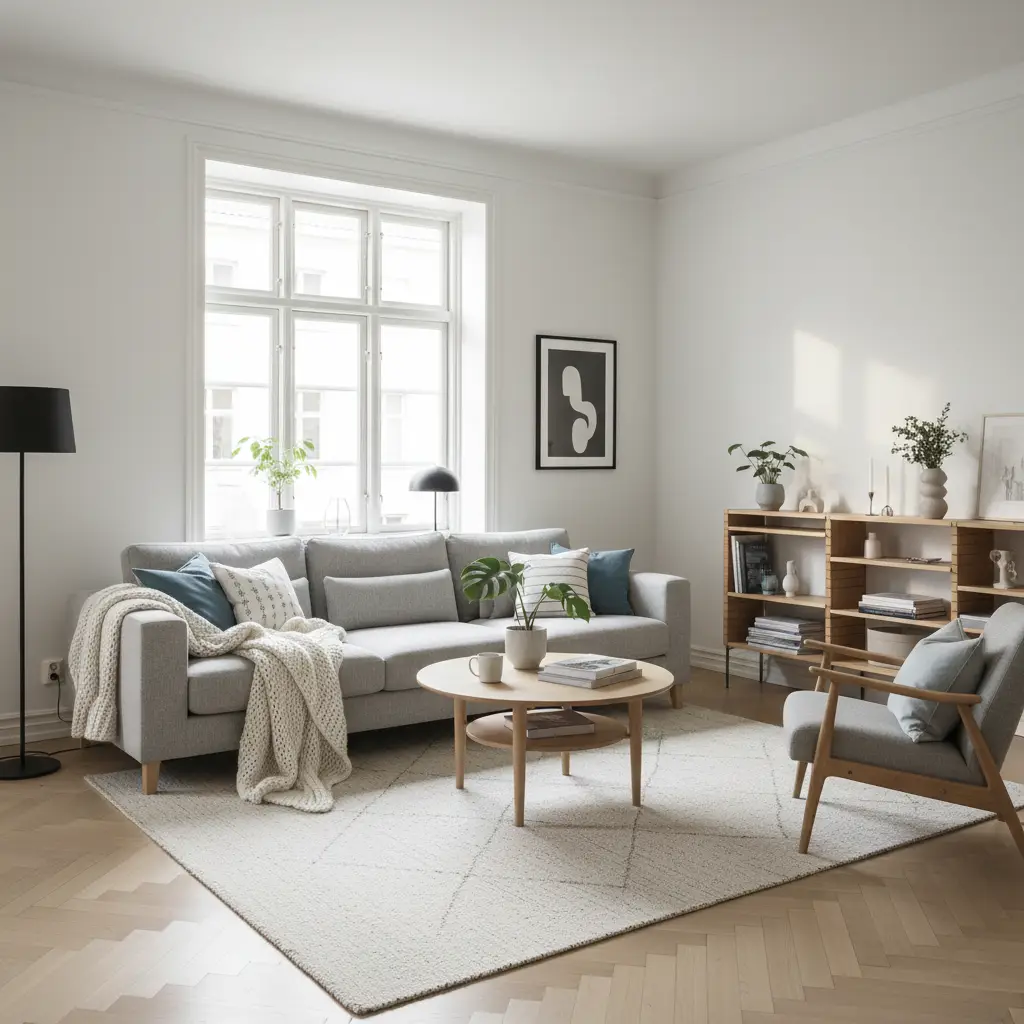
  • Room staged in a Scandinavian furniture style

    Several styles per room

    Name a modern, Scandinavian, minimalist, or classic look in the prompt and run the same photo again to see which furnishing direction suits the space and the audience.

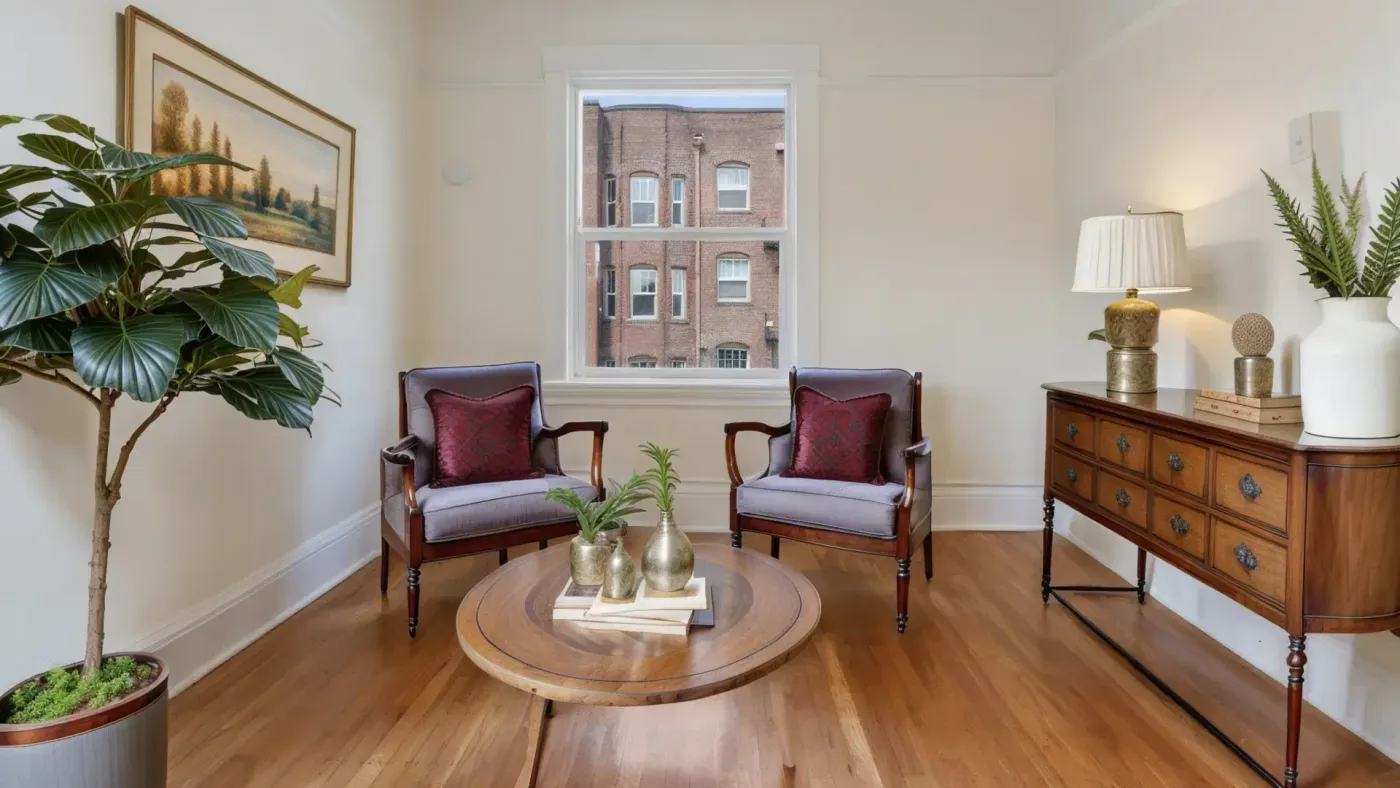
  • Sitting room staged with two upholstered armchairs, a round table and a sideboard

    Residential and commercial spaces

    Stage living rooms, bedrooms, and home offices, or fit out an empty retail or office unit to show how it could be used.

How virtual staging AI works

  1. Upload the empty room

    Shoot the room from a corner so two walls and the floor are visible, then upload the JPG or PNG.

  2. Describe the room and style

    Type what the room is for and which furnishing style you want, and say what must stay clear, such as a fireplace or a doorway.

  3. Review and save

    Compare the staged result against the original, re-run with a different style if it misses, then open the image full size to save it.

Virtual Staging AI FAQ

Still have a question?

Browse the Help Center or open a support ticket from your account.

Visit the Help Center

A wide, level shot taken from a corner, with the floor and two walls visible and the room well lit. Very dark photos and extreme wide-angle distortion give the weakest results.

It is not meant to. The prompt asks the model to keep wall positions, windows, doorways, and proportions as photographed and add only furniture and decor. Compare each result with the original, because a generated image can occasionally shift a detail.

Virtual staging is aimed at empty rooms. For a room that is already furnished, use AI interior design to re-render it in a different style instead.

Yes. Virtually staged images show furniture that is not in the property, and most listing platforms and real-estate bodies require them to be labelled as such. Check the rules that apply where you are marketing.

Any style you describe in the prompt. Modern, Scandinavian, minimalist, and classic are good starting points, each setting a different palette, material direction, and furniture scale for the room.

Each generation spends credits, and the Generate button shows the exact cost first. The 10 free credits on a new account work only with Z-Image, a text-to-image model, so staging a photo needs credits from a plan or one-time pack on the pricing page.

Show the room furnished

Upload one photo of an empty space and see it staged in the style that suits your listing.