Preview — not live yet

Floor Plan Animation: A Preview of the Planned Video Tool

Two ways to put a design in motion are planned: cut between a before and an after image, or move a camera through one still, making a clip short enough to post. Video generation is not switched on yet — this page is a preview.

  • 16:9 and 9:16 planned
  • Credit-based pricing

Not available yet

Preview: Floor Plan Animation

Planned: a short clip made from a before-and-after pair or from one still. Video generation is not live yet, so nothing can be uploaded or generated here.

Planned input
JPG, PNG, or WEBP up to 15MB — two images for a transition, one for a camera move
Mode
Transition · Camera move
Aspect ratio
16:9 · 9:16
Resolution
720p · 1080p
Duration
4s · 6s · 8s

Use a live tool instead

Planned floor plan animation modes

Planned for plans, interiors, and facades rather than general-purpose video.

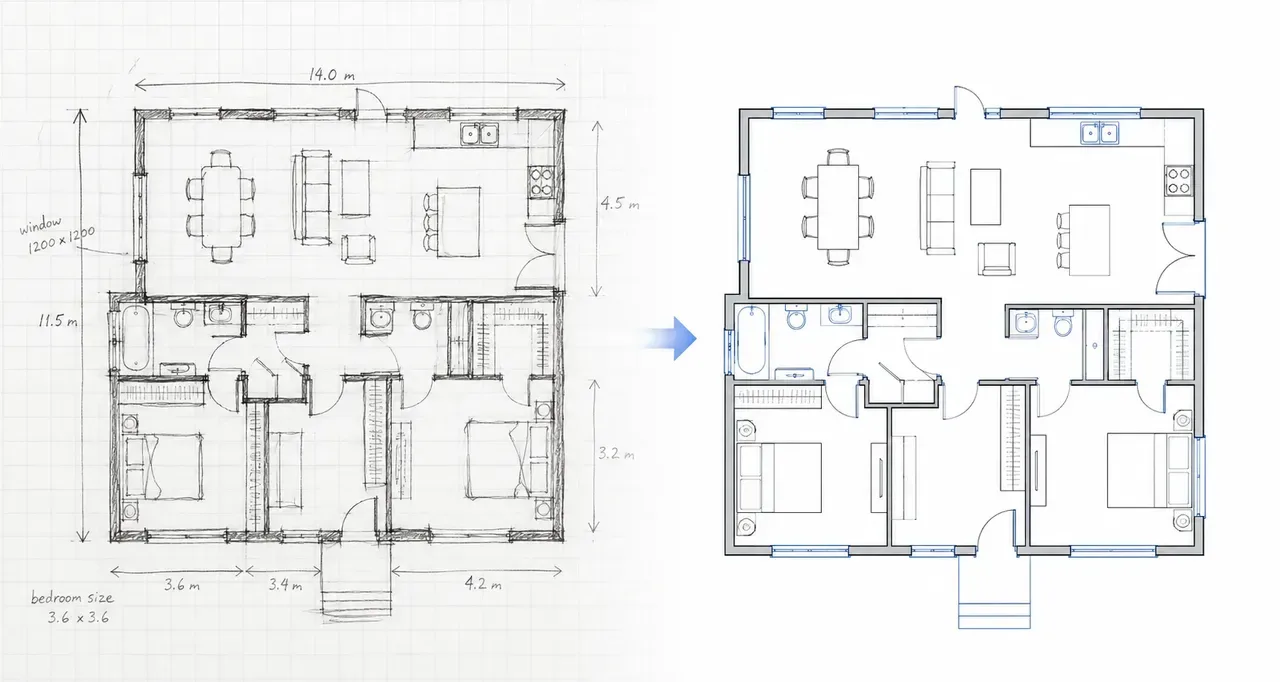
  • A rough sketch beside the clean plan drawn from it

    Before-and-after transitions

    Give it two images — the plan as it was and as it will be, or a room before and after a refit — and the planned transition mode will cut between them in a short comparison clip.

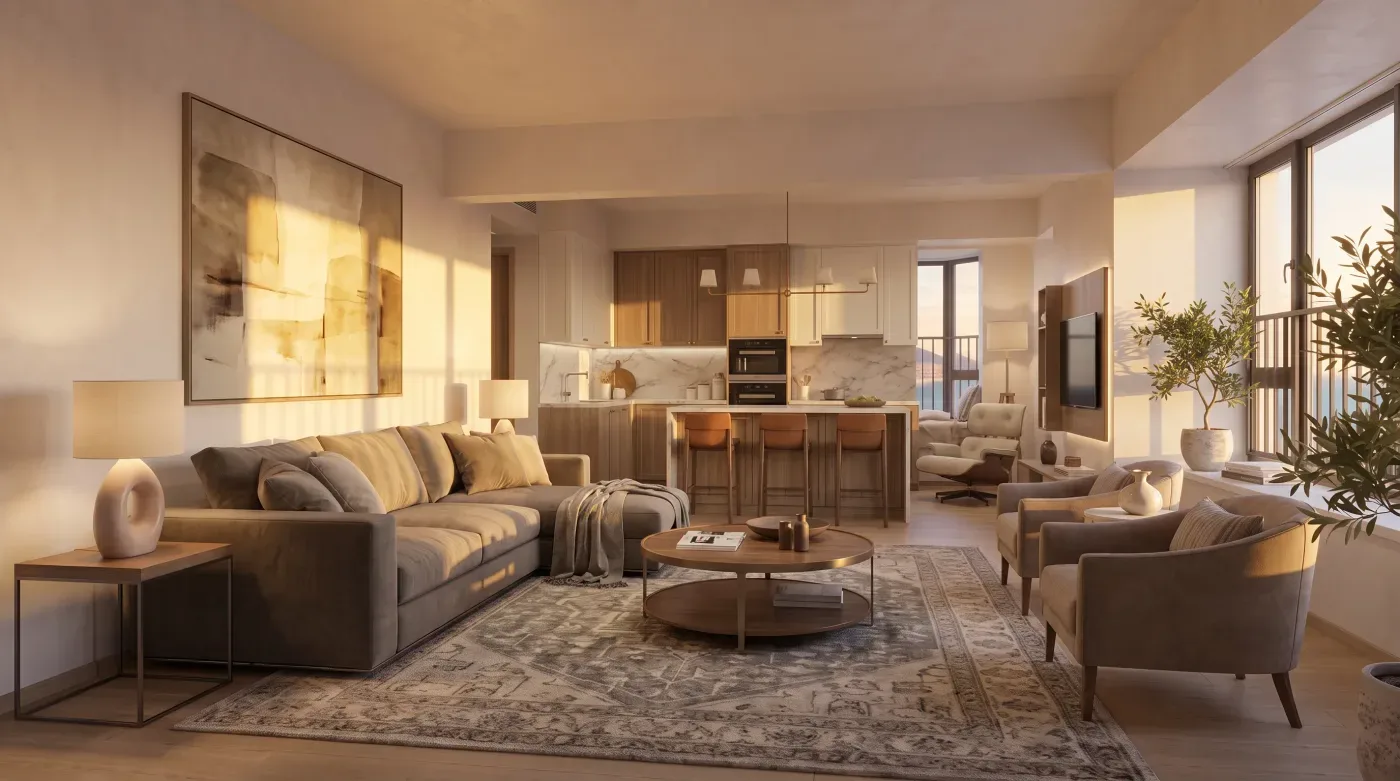
  • Photorealistic interior render of a furnished room

    Camera moves on a single image

    Push in, pull back, orbit, or track along a hallway. One still will be enough; the movement is what makes the space read.

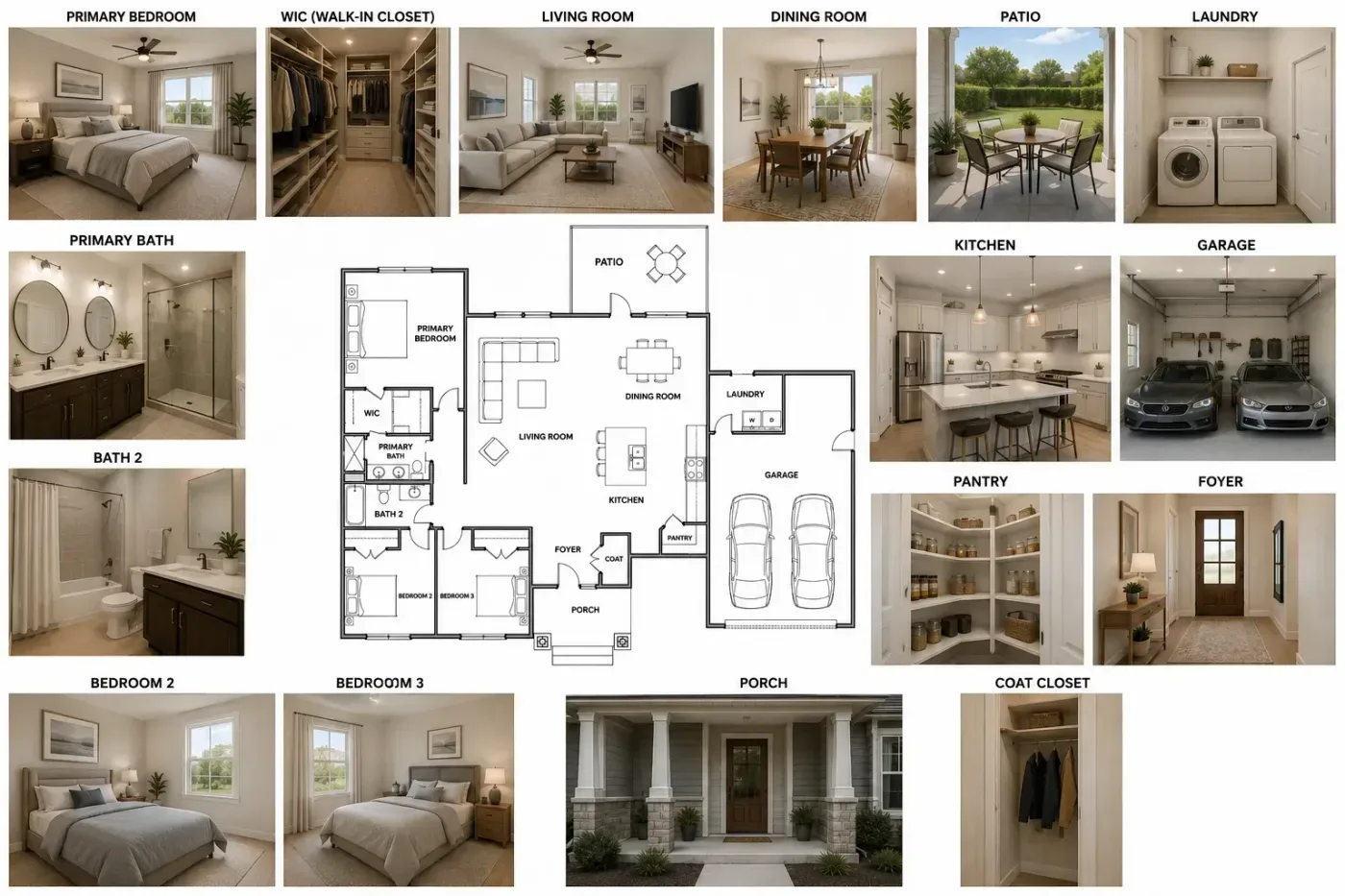
  • A 2D plan surrounded by furnished views of each of its rooms, room by room

    Plans, interiors, and exteriors

    The workflow is planned to take a 2D layout, an interior shot, or a facade photo — including renders you can already produce with the floor plan visualizer.

  • Formats that fit the platform

    Planned outputs: 16:9 for a listing page or a slide deck, 9:16 for a vertical feed, at 720p or 1080p, in 4, 6, or 8 second lengths.

  • Prompt control when presets fall short

    You will be able to describe the pacing, lighting, and camera behaviour in plain language instead of settling for the nearest preset.

How floor plan animation will work

  1. Upload your images

    Two images for a transition, or one image for a camera move.

  2. Pick the motion

    Choose transition or camera move, then set aspect ratio, resolution, and duration.

  3. Generate and download

    Once video is switched on, render the clip, preview it, and download it when it looks right.

Floor Plan Animation FAQ

Still have a question?

Browse the Help Center or open a support ticket from your account.

Visit the Help Center

Not yet: it is a planned tool, and video generation is not switched on. As planned, you would upload a plan image, pick a transition or camera move, set format and length, and download the clip. The floor plan visualizer makes still room images today.

As planned, transition mode will blend two images into a before-and-after reveal. Camera-move mode will take one image and animate a move across or into it — a push, a pull back, an orbit, or a track.

Interior photos and exterior facade shots are planned to go through the same workflow, so a renovation before-and-after or a property approach shot should work as well as a plan.

The planned inputs are JPG, PNG, and WEBP images up to 15MB each.

The planned lengths are 4, 6, or 8 seconds, in 16:9 or 9:16, at 720p or 1080p. They are deliberately short — clips for listings and feeds, not walkthrough tours.

Anywhere. One route that works today is to edit a plan in the floor plan editor and keep the original and the revision as a pair for when animation ships.

Need to present a plan today?

Video generation is not live yet. The floor plan visualizer already turns a 2D plan into furnished room images — stills, not clips.